

The Installment Payment Terms app extends Microsoft Dynamics 365 Business Central by enabling you to break a single invoice total into multiple smaller payments over time. This will make it easier to manage customer payment schedules and improve cash flow flexibility.
Here’s what makes it different:
- Create Customized Payment Plans. – Design tailored payment schedules with flexible intervals, amounts, and due dates to match customer agreements or internal policies.
- Track Payments and Status. – Monitor all payments made toward an invoice and view the real-time status of each installment—ensuring accuracy and transparency at every stage.
- Seamless Integration with Business Central. – Work effortlessly within standard Business Central functionality to record received payments, track overdue amounts, and apply any configured fees automatically without any changes to your existing A/R and A/P processes.
Installation & Setup #
This app is licensed through Microsoft. To purchase and deploy it in your production environment, follow the instructions in the link below:
How to purchase and license the app through Microsoft AppSource
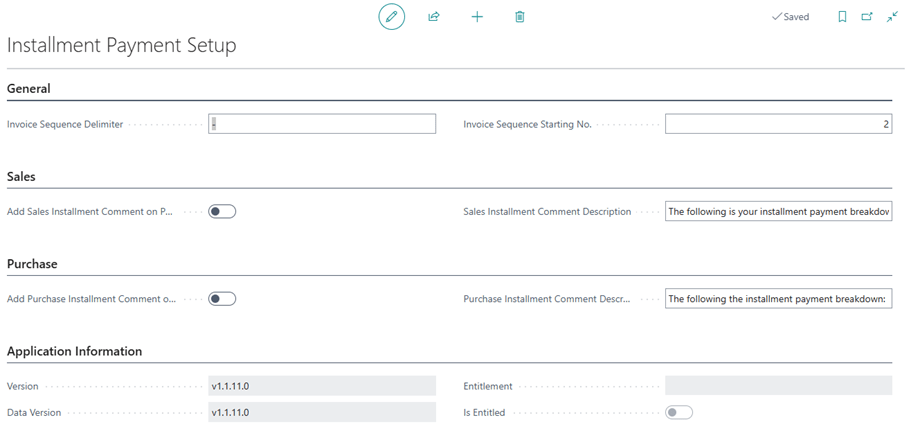
Installment Payment Terms Setup Page #
- Open the Payment Terms page
- Click on Installment Payment Setup on the ribbon menu
- The Installment Payment Terms Setup page opens
Assign User Permission Set #
- Search “User” and select the related link to open the Users list.
- On the Users list, select users that will require permission to the Installment Payment Terms app.
- On each of the selected User Cards, go to the User Permission Sets tab, add the necessary permissions based on the role of the user:
- APEINSTALLPMTADMINE
- Use this permission set for administrators who manage Additional Installment Payment Terms. Users must have a license assigned in the Microsoft 365 admin center
- Use this permission set for users who can invoice Sales or Purchase documents. Users must have a license assigned in the Microsoft 365 admin center
- Use this permission set for users who cannot invoice Sales documents. A license is not required, but assigning this permission set prevents licensing errors when accessing areas used by the app.
- APEINSTALLPMTDEMO
- Use this permission set to test the app in a Sandbox environment. This permission set does not require a license. This permission set is not intended for use in Production
- APEINSTALLPMTADMINE



