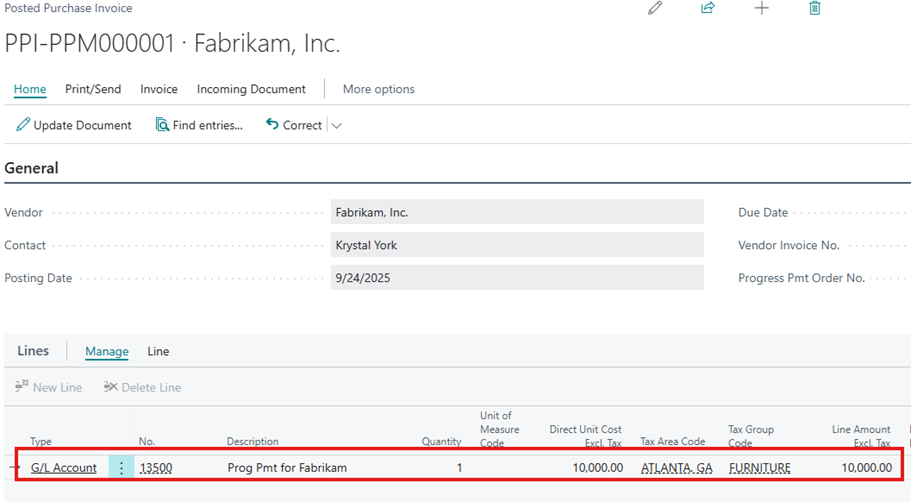
Sales progress payments #
On the Sales Order Card, you will find a group called Progress Payment. This group has information regarding the status of any Progress Payments made for the Sales Order.
Progress payment group #

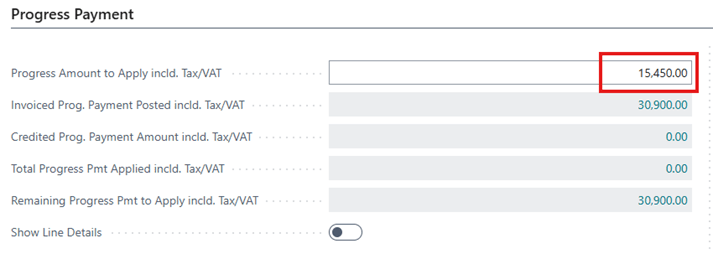
- Progress Amount to Apply incld. Tax/VAT
- This field is filled when you are posting the current sales order to allocate previously posted Progress Payment Invoices.
- Invoiced Prog. Payment Posted incld. Tax/VAT
- The total of all Progress Payment Invoices posted for the current sales order.
- Credited Prog. Payment Amount incld. Tax/VAT
- The total of all Progress Payment Cr. Memos posted for the current sales order.
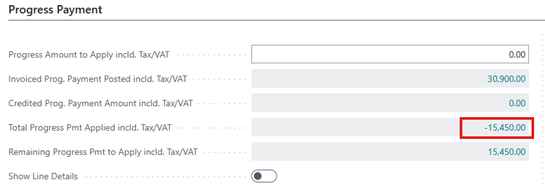
- Total Progress Pmt Applied incld. Tax/VAT
- The total of Progress Payments applied to the current sales order.
- Remaining Progress Pmt to Apply incld. Tax/VAT
- The total amount of the remaining Progress Payments to be applied to the Sales Order
- Show Line Details
- Mark this to true if you want to add the contents of the current sales order to the Progress Payment Invoice created.
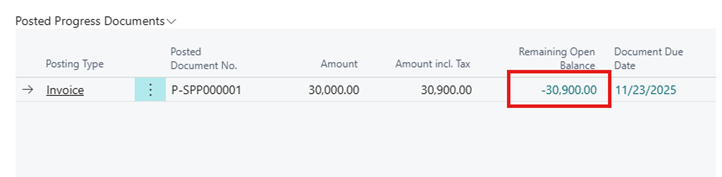
- Posted Progress Documents
- This will show a log all Progress Invoices, Cr. Memos, and Applications for the current sales order
Create progress invoices for sales orders. #
- Open the Sales Order Card and click on Actions.
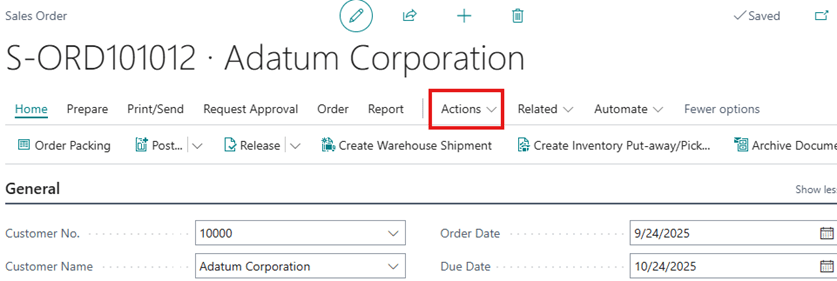
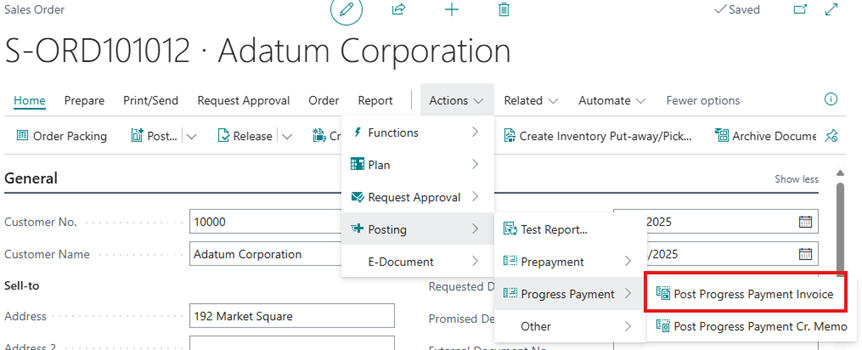
- Click Posting>>Progress Payment>>Post Progress Payment Invoice.
- Update any details and enter the amount of the Progress Payment Invoice you want to create.
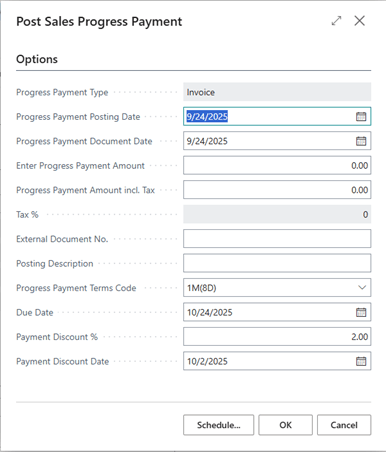
- Click OK.
- The Progress Payment group will now show that a Progress Payment Invoice has been posted against the sales order.

- You can view the Customer Ledger Entry for the posted Progress Invoice by clicking on the Remaining Amount field.
Allocate progress payments when invoicing sales orders #
To recognize the Progress Payments against your Sales Order, you must tell Business Central the amount to Allocate. You are not allowed to allocate more than the amount being invoiced and not allowed to invoice more than the amount remaining to be allocated.
Steps to allocate Progress Payments:
- Enter the Qty. to Invoice that you will be posting for the current sales order.

- Enter the Progress Amount to Apply
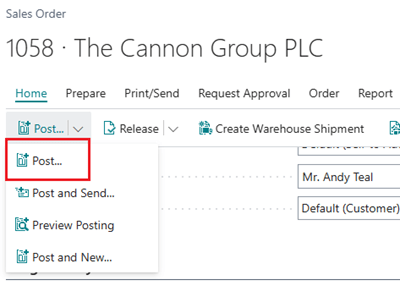
- Click Posting>>Post… and select the posting option you want to perform
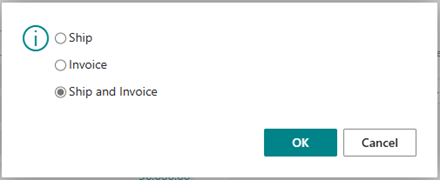
- Select the posting type you will be performing, either Invoice or Ship and Invoice and click OK
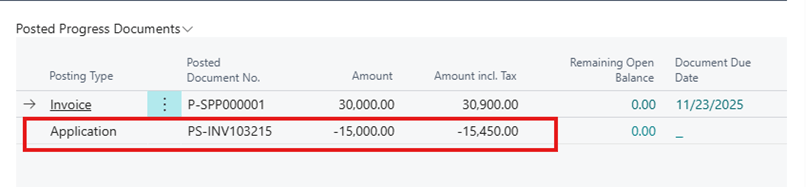
- Once the invoice is applied, the Posted Progress Documents will show a log of the Application amount.
- The Total Progress Pmt Applied and Remaining Progress Pmt to Apply fields will now be updated
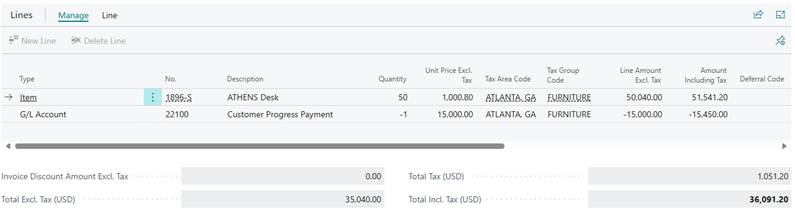
- You will see the application recognized on the posted invoice as well
Find your progress payment documents #
Do the following to find related Progress Payment Invoices
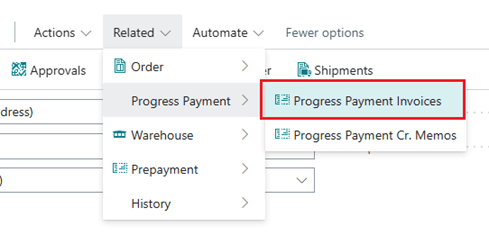
- Click Related>>Progress Payment>Progress Payment Invoices
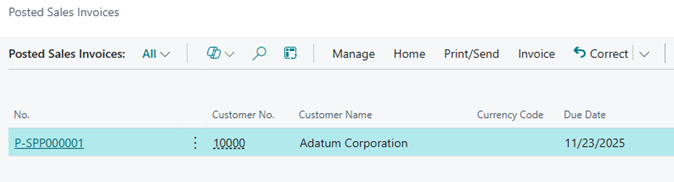
- Open the Posted Sales Invoice to review
Purchase progress payments #
On the Purchase Order Card, you will find a group called Progress Payment. This group has information regarding the status of any Progress Payments made for the Purchase Order.
Progress payment group #

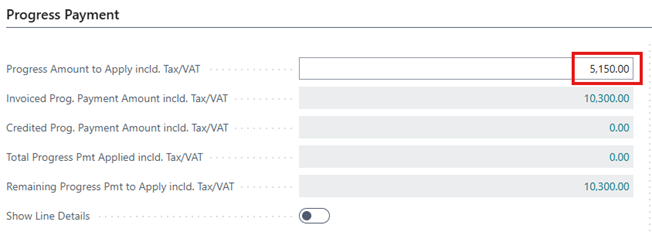
- Progress Amount to Apply incld. Tax/VAT
- This field is filled when you are posting the current Purchase order to allocate previously posted Progress Payment Invoices.
- Invoiced Prog. Payment Amount incld. Tax/VAT
- The total of all Progress Payment Invoices posted for the current Purchase order.
- Credited Prog. Payment Amount incld. Tax/VAT
- The total of all Progress Payment Cr. Memos posted for the current Purchase order.
- Total Progress Pmt. Applied incld. Tax/VAT
- The total of all Progress Payment Applications posted for the current Purchase order.
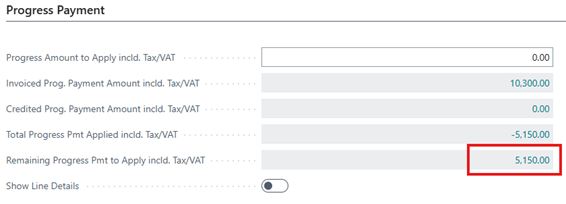
- Remaining Progress Pmt to Apply incld. Tax/VAT
- The total amount of the remaining Progress Payments to be applied to the Purchase Order
- Show Line Details
- Mark this to true if you want the line detail of the current Purchase order to transfer to the Progress Payment Invoice created.
- Posted Progress Documents
- This will show a log all Progress Invoices, Cr. Memos, and Applications for the current Purchase order
Create progress invoices for purchase orders. #
- Open the Purchase Order Card and click on Actions.
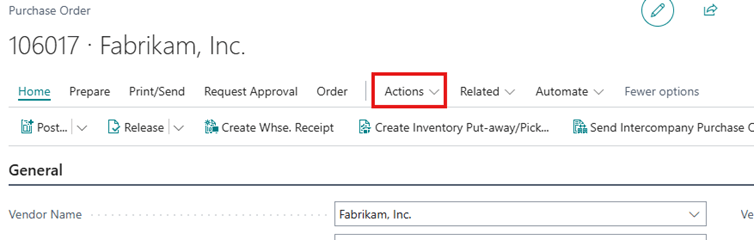
- Click Posting>>Progress Payment>>Post Progress Payment Invoice.
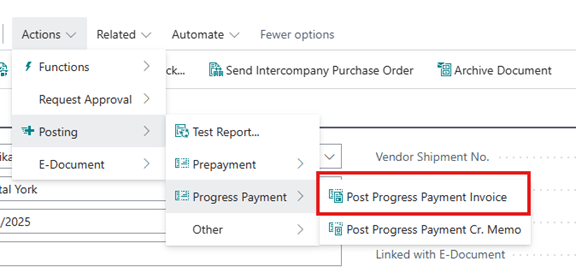
- Update any details and enter the amount of the Progress Payment Invoice you want to create.
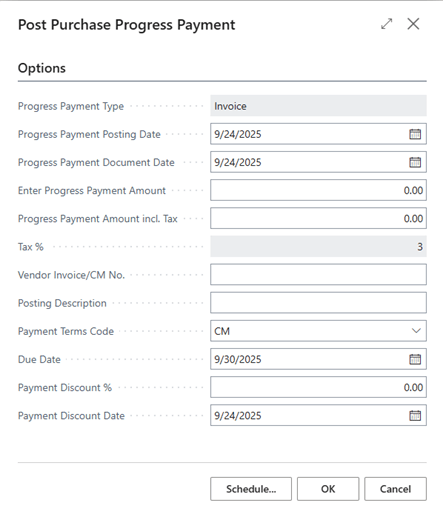
*The amount in the Progress Payment Amount incld. Tax will be the total amount invoiced. You can either enter the total amount of the Progress Payment in that field, or enter an amount in the Enter Progress Payment Amount field and let Business Central calculate the tax amount.
- Click OK.
- The Progress Payment group will now show that a Progress Payment Invoice has been posted against the Purchase order.

- You can view the Vendor Ledger Entry for the posted Progress Invoice by clicking on the Remaining Amount field.

Allocate progress payments when invoicing purchase orders #
To recognize the Progress Payments against your Purchase Order, you must tell Business Central the amount to Allocate. You are not allowed to allocate more than the amount being invoiced and not allowed to invoice more than the amount remaining to be allocated.
Steps to allocate Progress Payments:
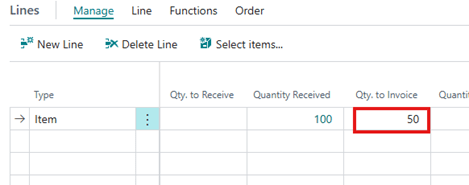
- Enter the Qty. to Invoice that you will be posting for the current Purchase order.
- Enter the Progress Amount to Apply
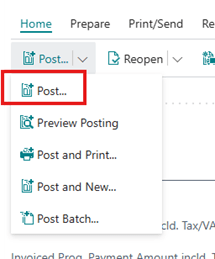
- Click Home>>Post..
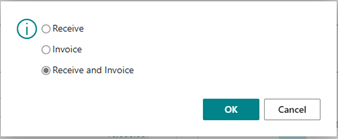
- Select the posting type you will be performing, either Invoice or Receive and Invoice and click OK
- Once the invoice is applied, the Posted Progress Documents will show a log of the Application amount.
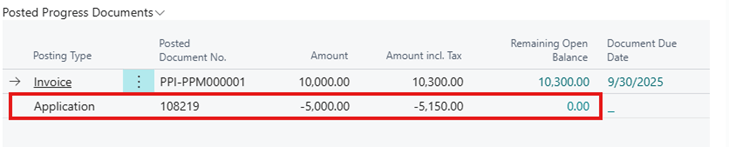
- The Remaining Progress Amount will now be updated
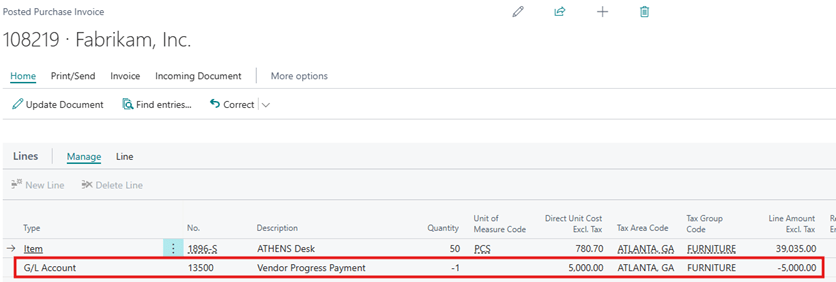
- When you review the posted invoice, the Progress Payment are recognized on the lines
Find progress payment documents #
Do the following to find related Progress Payment Invoices
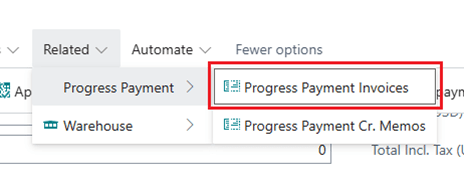
- Click Related>>Progress Payment>Progress Payment Invoices
- Open the Posted Purchase Invoice
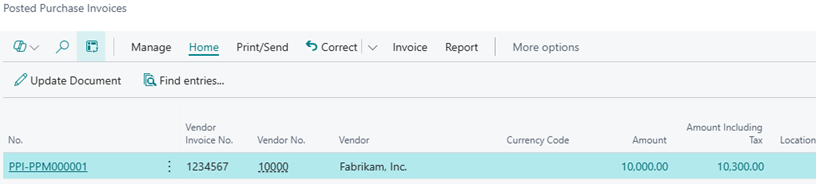
- The Progress Payment is listed in the Lines section of the Posted Purchase invoice