Streamline procurement by enabling employees to submit purchase requests without needing vendor or item details. The Purchase Request app keeps everything inside Business Central—eliminating emails and spreadsheets—while maintaining your purchasing workflows. Requesters focus on what they need; purchasers handle sourcing and pricing. Integrated with approval workflows, the Purchase Request Module app gives your team a straightforward way to request what they need while letting your purchasing department do what they do best.
Installation & Setup #
This app is licensed through Microsoft. To purchase and deploy it in your production environment, follow the instructions in the link below:
How to purchase and license the app through Microsoft AppSource
Assign User Permission Set #
- Open the User List page.
- On the Users list, select users that will require permission to the app.
- On each of the selected User Cards, go to the User Permission Sets tab, add the necessary permission sets based on the role of the user:

APEPURCHREQUEST – Assign this to the users that will be using this app.
Assisted Setup #
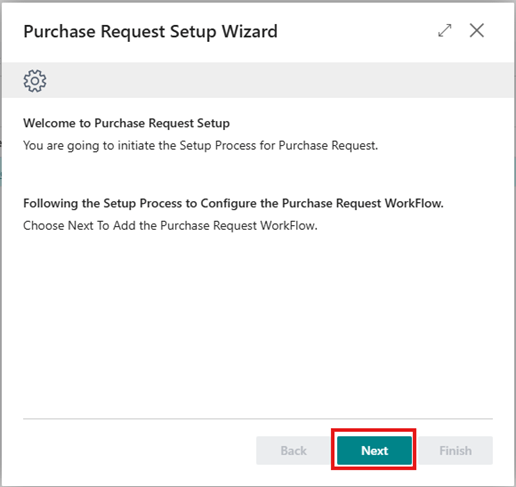
- Open the Assisted Setup page and select “Set Up Purchase Request” in the Purchase Request Setup group to launch the setup wizard

- Click Next to begin the setup
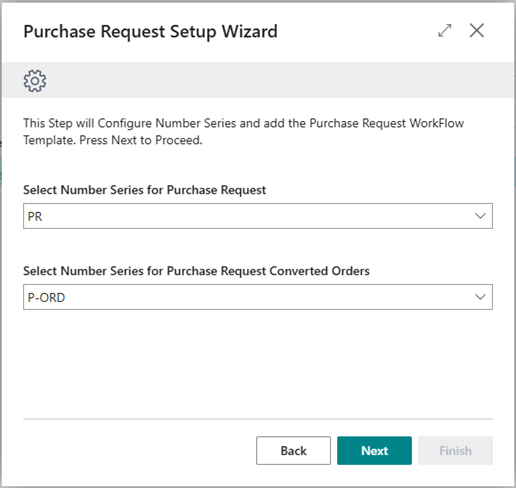
- Select the No. Series to be used for Purchase Request records and Purchase Orders Converted from Purchase Request and click Next to continue.
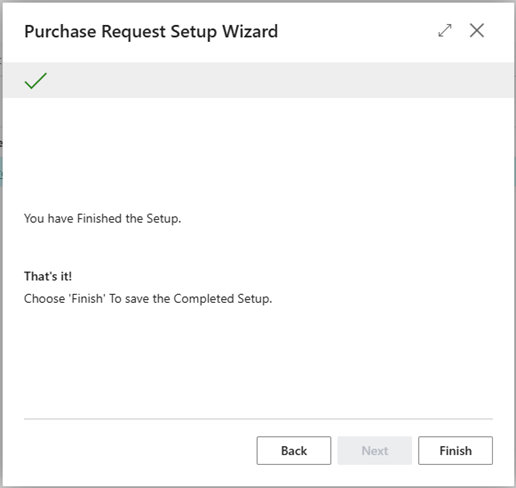
- Click Finish to complete the setup
The No. Series settings can be updated by going to the Purchase Request Setup page
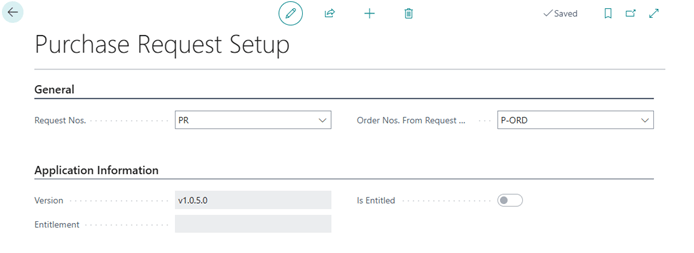
Purchase Request Approvals #
A Default Purchase Request workflow template is created during installation of the app.
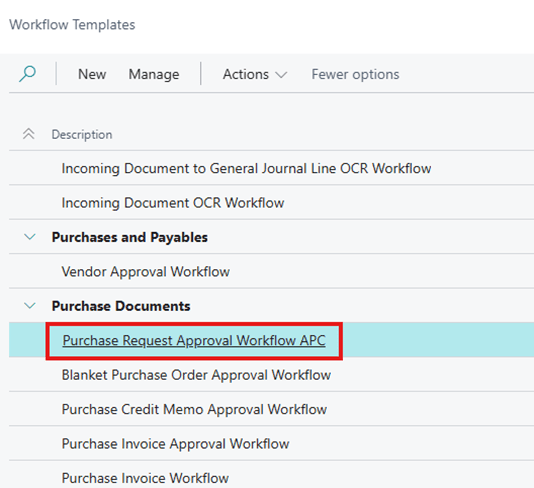
- Open the Workflow Templates list
- Select Purchase Request Approval Workflow APC
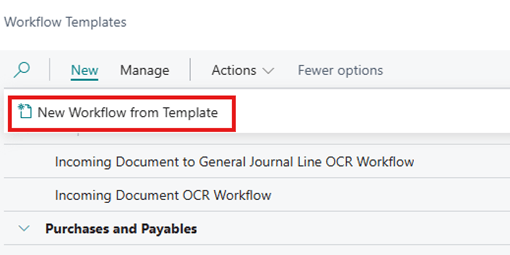
- Click New >> New Workflow from Template
- Adjust the new workflow if necessary and Enable the workflow
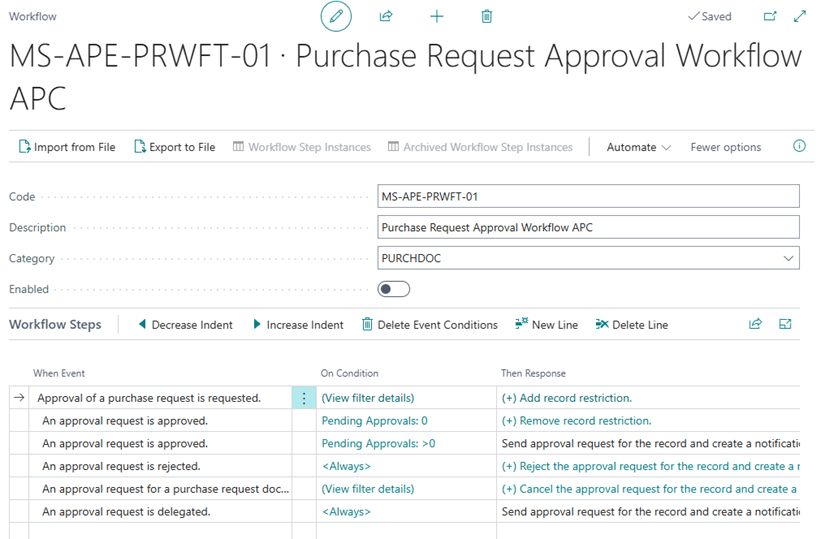
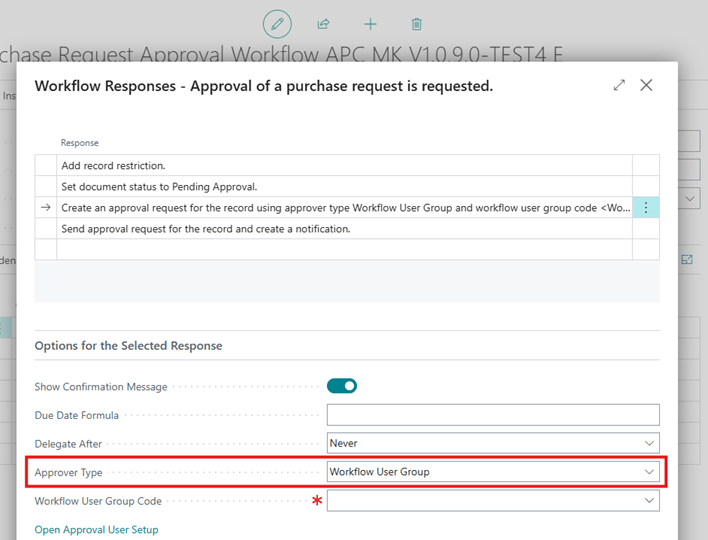
- Currently, the workflow supports approvals using Workflow User Groups.
- Approval Chains are not supported at this time and are planned for a future release.