Skip to content
  • English English
    • English English
APC Dynamics | Dynamics 365 Business Central ConsultantAPC Dynamics | Dynamics 365 Business Central Consultant
  • Home
  • Our Company
    • Our Partners
    • Careers
  • ERP Solutions
    • Dynamics 365 Business Central
    • Dynamics 365 Business Central Add-ons
    • Dynamics NAV
  • Our Services
  • Portfolio
    • Food Manufacturers
    • Nurseries and Farms
    • High-Tech Equipment Manufacturing
    • Sporting Goods / Active Sports
    • Automotive Aftermarket
    • Distribution/Wholesale
  • Articles
  • Support
    • Knowledge Base
    • Contact Us

Freight Container Management

  • Overview and Setup
  • User Guide
  • Reports
  • Appendix
  • FAQ

Progress Payment Invoicing

  • Overview and Setup
  • User Guide
  • FAQ

Installment Payment Terms

  • Overview and Setup
  • User Guide

Purchase Request Module

  • Overview and Setup
  • User Guide

California Sales Tax

  • Overview and Setup
  • User Guide

Sales Commission Based on Cash Receipt

  • Overview and Setup
  • User Guide
  • Appendix

Item Restriction

  • Overview and Setup
  • User Guide
  • FAQ

Serial Number by Bin on Bin Contents

  • Overview and Setup
  • User Guide

Inventory Aging Report

  • Setup and User Guide

Daily Invoicing Report with G/L Breakdown

  • Setup and User Guide

How-tos

  • Purchase and License an app through Microsoft AppSource
  • Setup New Users in Business Central
View Categories
  • Knowledge Base
  • Purchase Request Module
  • User Guide

User Guide

1 min read

Requestor #

This section is for employees who need to request goods or services.

  • Open Purchase Request list.
  • Click New to create a new purchase request.

  • Enter necessary fields in the General group.
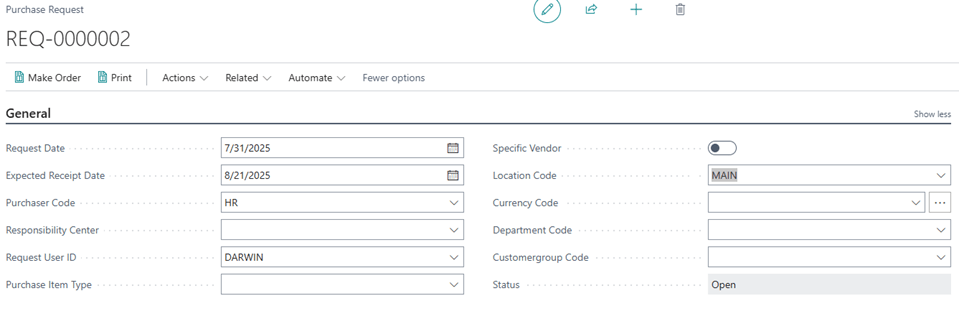
  • Enter details of the purchase request in the lines section.

Purchaser #

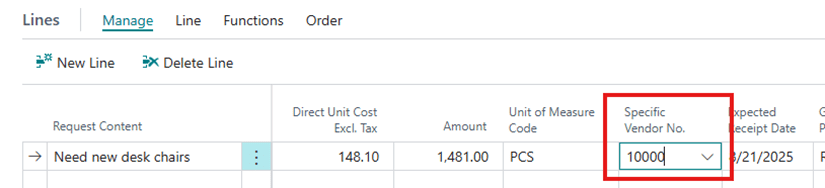
  • Fill purchasing information based on request, add the Type, No., and update the Direct Unit Cost.

  • Enter a Vendor in the Specific Vendor No.
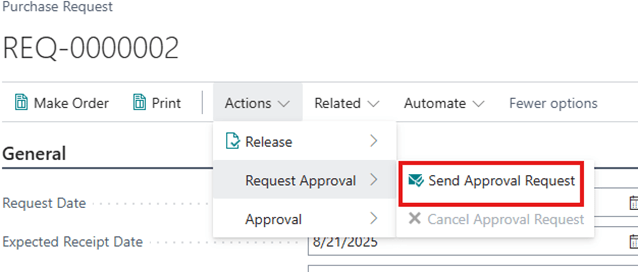
  • If using Approvals, click on Actions>>Request Approval>>Send Approval Request. This will trigger the Purchase Request Approval workflow and change the Status to Pending Approval. Once approved, the status will change to Released
Note: If not using Approvals, click on Actions>>Release>>Release
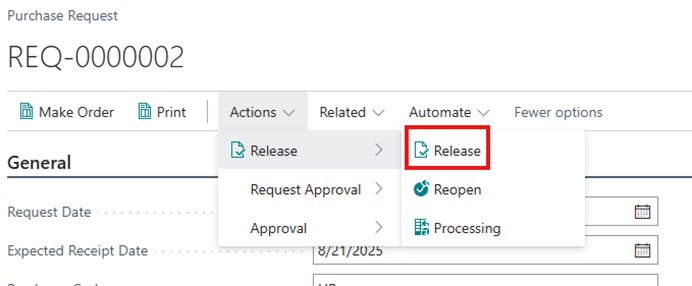
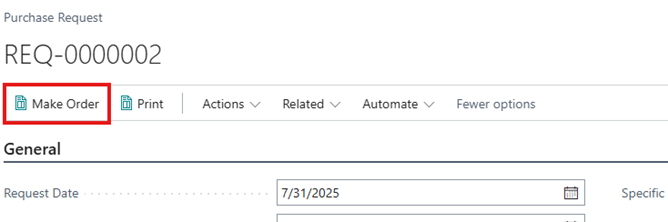
  • Once the order is Released, the request is ready to be converted to a Purchase Order. The purchaser will click on the Make Order action and follow the prompts to create the order.
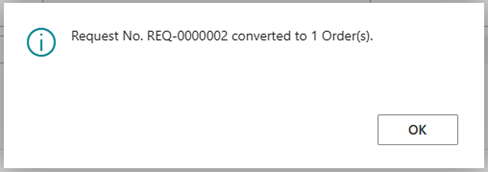
  • A notification will pop up to signify that the request has been converted.
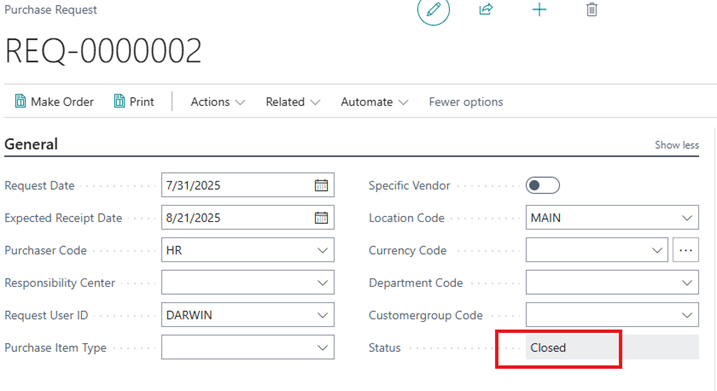
  • Once the request has been fully converted, the Status will change to Closed
Document access Control #

You can enable **Visibility Control** in Purchase Request Setup to restrict document access to authorized users.
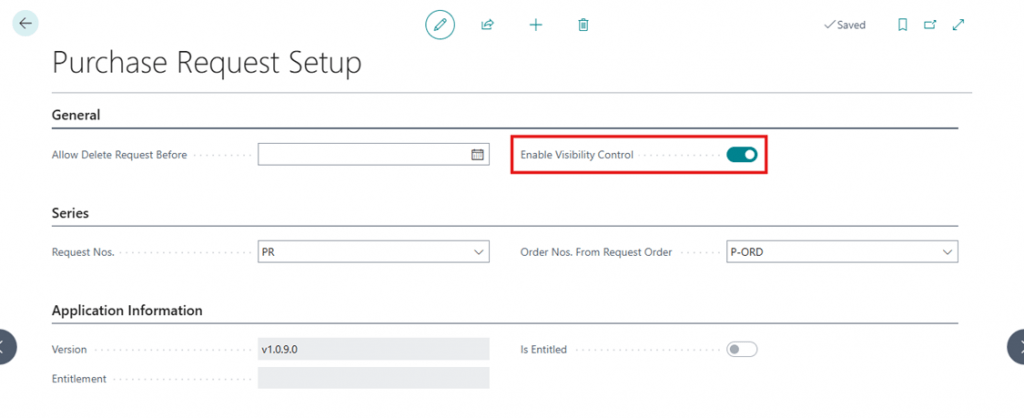
When enabled:

– Users can only view requests they created, are the requestor of, are assigned as the purchaser for, or are part of the approval chain.

– Designate **Purchase Request Admins** in User Setup for users who need full access (e.g., managers, accountants, auditors)

Share This Document:

  • Facebook
  • X
  • LinkedIn
Overview and SetupOverview and Setup
Table of Contents
  • Requestor
  • Purchaser
  • Document access Control

Copyright © 2025 APC Dynamics Inc.

Privacy Notice | Privacy Requests

This site is protected by reCAPTCHA and the Google Privacy Policy and Terms of Service apply.

Copyright 2026 © AP Commerce, Inc.
  • Home
  • Our Company
    • Our Partners
    • Careers
  • ERP Solutions
    • Dynamics 365 Business Central
    • Dynamics 365 Business Central Add-ons
    • Dynamics NAV
  • Our Services
  • Portfolio
    • Food Manufacturers
    • Nurseries and Farms
    • High-Tech Equipment Manufacturing
    • Sporting Goods / Active Sports
    • Automotive Aftermarket
    • Distribution/Wholesale
  • Articles
  • Support
    • Knowledge Base
    • Contact Us
  • English English
    • English English