The Sales Commission based on Cash Receipt app for Microsoft Dynamics 365 Business Central streamlines commission tracking and payouts by linking them directly to customer payments. This ensures commissions are only paid when revenue is collected, improving accuracy and aligning sales incentives with cash flow.
Here’s what makes it different:
- Flexible Commission Setup – Define commissions by Salesperson or by Item, ideal for businesses that calculate commissions differently depending on products or roles. Calculations are automatically adjusted based on your setup.
- Pay Commissions on Actual Cash Received – Commissions are calculated and paid only when payment is received from the customer, with partial commissions automatically applied for partial payments.
- Comprehensive Document Tracking – Quickly find all documents related to a salesperson’s commission for full transparency and easy reference.
- Document-Specific Commission Calculation – Adjust and calculate commissions for specific documents to match special agreements or exceptions.
- Create POs or Invoices from the Commission Page – Streamline workflows by generating purchase orders or invoices directly from the Salesperson Commission page.
Installation & Setup #
This app is licensed through Microsoft. To purchase and deploy it in your production environment, follow the instructions in the link below:
How to purchase and license the app through Microsoft AppSource
Assign User Permission Set #
Assign the APESALESCOMMISSION permission set to all users that will be processing commissions.
Sales Commission Setup #
The Sales Commission based on Cash Receipt App is set up per company. When using this app with different companies, you must complete the following instructions in each company.
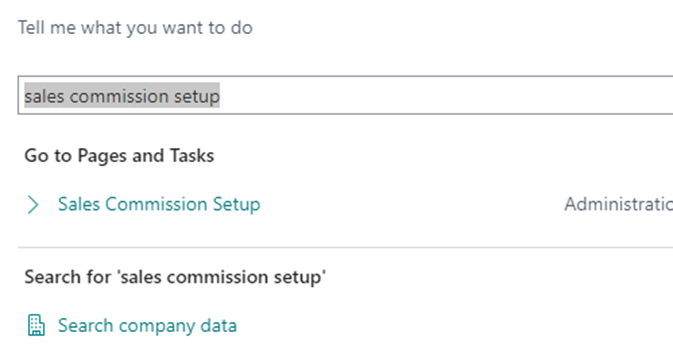
- Choose the icon that opens the Search feature, enter “Sales Commission Setup” and select the related link:
- Define the setup that you wish to use:
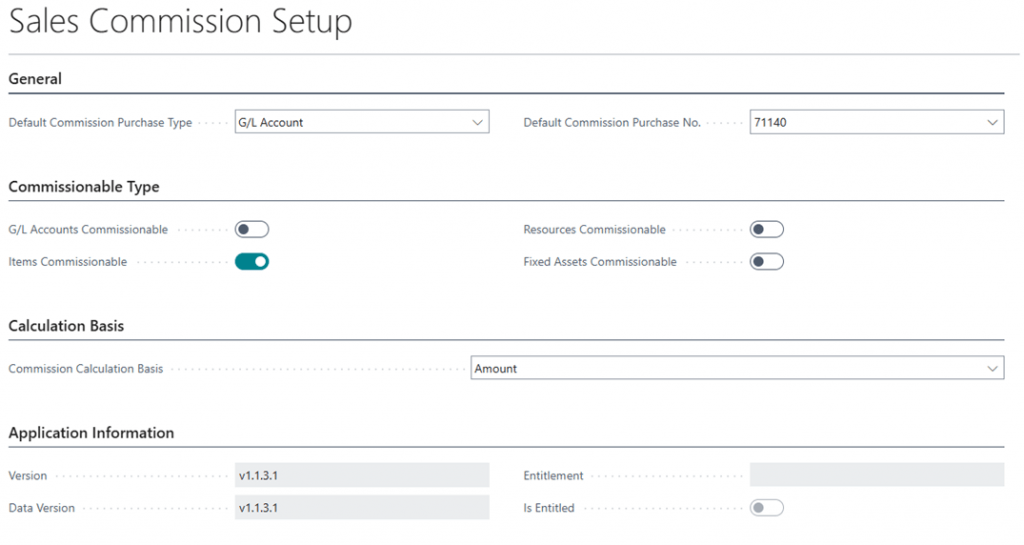
- General Group
- Default Commission Purchase Type: Defines the line type of the created purchase document.
- Default Commission Purchase No.: Defines the No. to use when creating commission purchase invoices.
- Commissionable Type Group
- G/L Accounts Commissionable: Defines whether G/L Account sales are commissionable.
- Items Commissionable: Defines whether Items sales are commissionable.
- Resources Commissionable: Defines whether Resources sales are commissionable.
- Fixed Assets Commissionable: Defines whether Fixed Assets sales are commissionable.
- Calculation Basis Group
- Commission Calculation Basis: Defines how the system will base the commission calculation. Commissions can be calculated by Amount or Profit.
- Application Information Group
- Version: Displays the current version of the app
- Data Version: Displays the current version of the app
- Entitlement: Displays the entitlement the current user is licensed
- Is Entitled: Displays if the user has a valid license
Salesperson Setup #
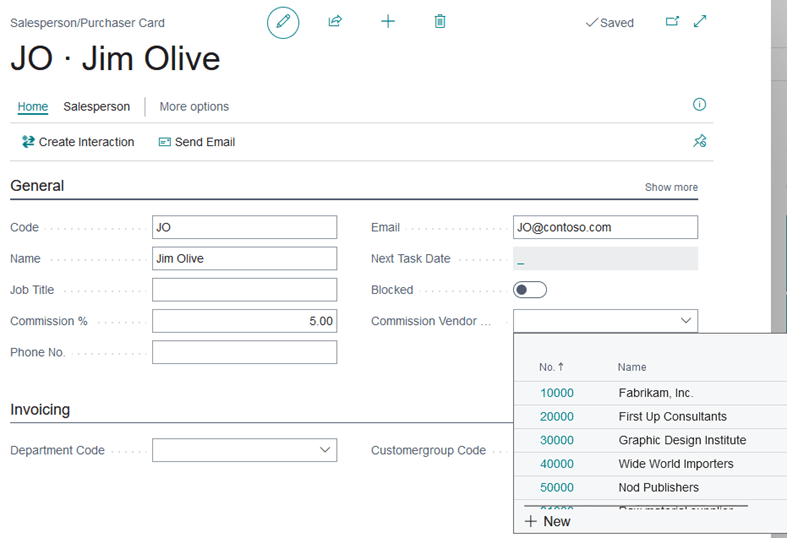
Assign a Commission Vendor No. on the Salesperson/Purchaser Card. When commission invoices are created, it will use the Commission Vendor No. value on the Salesperson to create the purchase order/invoice.
You must also define the Commission % on the Salesperson card if you want to calculate the commission based on the order.
Item / Resource / G/L Account / Fixed Asset Setup #
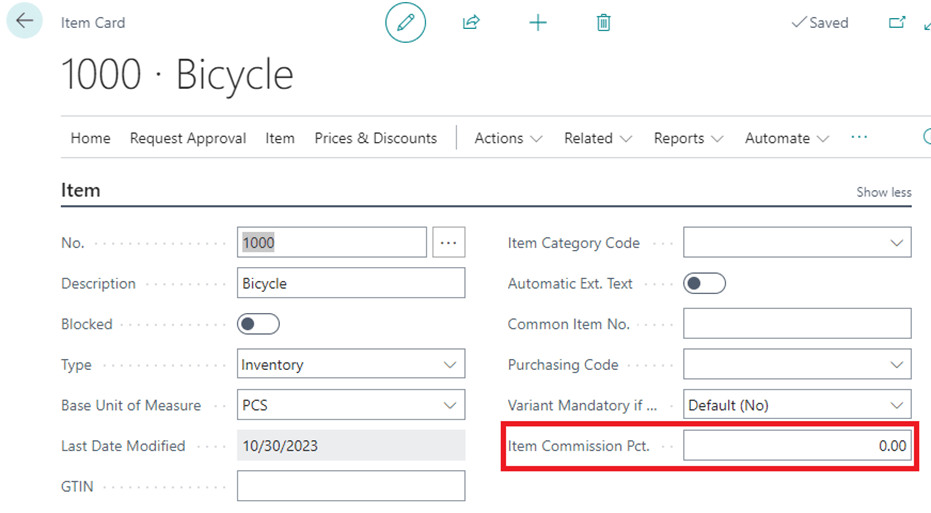
If your sales commission is based on the sale of items, resources, G/L accounts, or fixed assets, then you will need to define the commission in the respective cards.