Assigning New License #
- Go to your Microsoft 365 Admin.
- Note: You must be an admin user
- Go to Users > Active Users
- Click on a specific user that you want to assign the BC license > Licenses and Apps
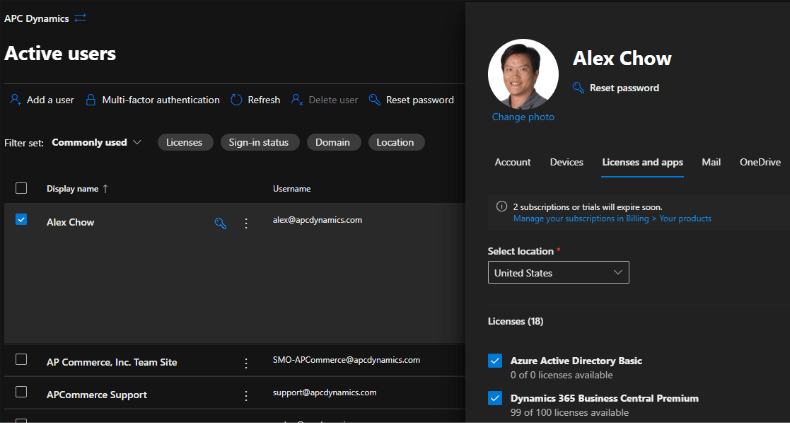
- Click on Dynamics 365 Business Central Essential (or Premium)
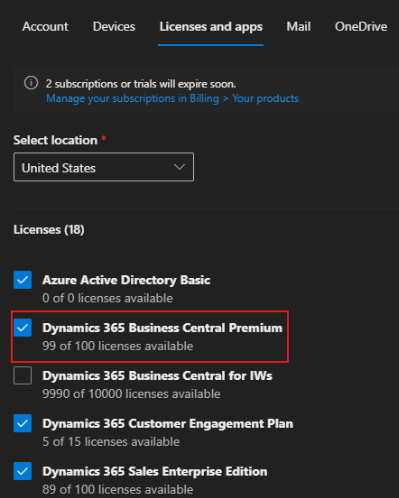
5. Click on Save Changes
Go to Business Central #
- Log into Business Central as a SUPER user
- Find the Users screen
- Click on Home > Update Users from Microsoft 365 (this process will grab all of the users that have BC license)
- Go through the confirmation prompts
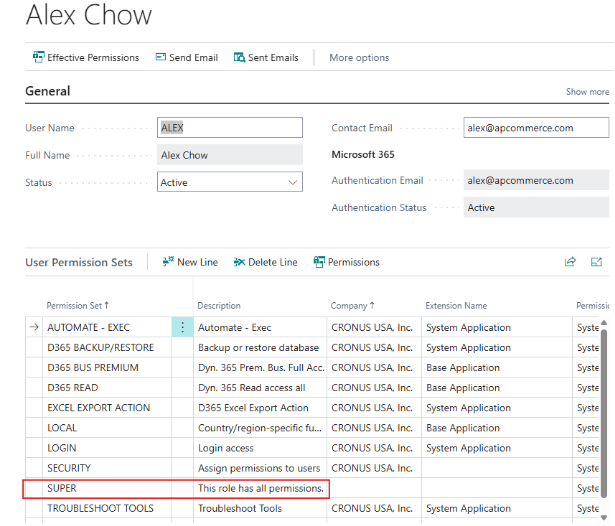
- Click on the user you want to give BC permissions to
- Scroll down to User Permissions and assign Permission Sets
Assign SUPER permission if you’re unsure what permission to assign. You can always change the permissions later