

Why are put-away records not being created automatically when I process the container to my warehouse location? #
Check these two settings on your warehouse’s Location Card:
- Use Put-away Worksheet should be disabled
- Always Create Put-away Line should be enabled
Where to find it: Search (Alt+Q) for Locations, open the location you’re using, and go to the Warehouse FastTab.
With these settings in place, Business Central will automatically create put-away records when you process the container, no manual worksheet step required.
How do I adjust the quantities on the container before receiving them to the final destination? #
When you receive the container, you’re receiving the container based on whatever is on the BOL and the commercial invoice. There’s no way to “reject” the container or update the contents of international documents at the time of receipt. If there are discrepancies, you will need to adjust the quantities at the final destination location and create your credits or claims to your overseas vendor.
Over Receiving within the Container Receiving app #
We do not use the standard over-receive functionality within Business Central. Rather, if you need to receive more than the quantities on the purchase order, the app will create a new line indicating the over receipt. The reason we choose to create a new line instead of modifying the original quantities on the purchase order is because the new line will clearly indicate that it’s an over-receipt. There will be times when the vendor will not charge you for the extra quantities, you need that flexibility whether those items that come in have a cost or not.
Can I split a purchase line between multiple containers? #
You will need to add your purchase line to the containers and adjust the quantity to match the actual container quantity.
The Duty/Tariff that my vendor charges me does not match what’s calculated. #
If the Duty/Tariff charged does not match what’s calculated based on the setup, you will need to double check with your vendor on what is the duty/tariff that is charged for the container. Match that up against what’s setup on the item and ensure the calculation matches. If there are discrepancies, you will need to manually resolve this with the vendor or adjust the duty/tariff calculation described above.
When am I able to create my Landed Cost Allocation purchase documents? #
As soon as you receive the container lines into inventory, you can create and post your landed cost charges. If you are using the ‘On the Water’ location, you can begin processing these charges once you mark the container as ‘Departed.’ However, if you are not using the ‘On the Water’ location, you won’t be able to process your Landed Cost charges until you transfer the container to your final location and post it.
Updating the Expected Receipt Date on the Container updates the Expected Receipt Date on the Purchase Order #
The Expected Receipt Date on the Purchase Order will be updated anytime you change the Expected Receipt Date on the Container. Additionally, Transfer Orders created by processing the Departure of containers using the On the Water location will have the Receipt Date updated as well.
How do I prevent transfer lines created during the departure processing from being suggested during MRP? #
Update the Default Planning Flexibility on the Freight Container Receiving Management Setup page from No Change to None before processing your departure. If you already have a transfer order, you can personalize the Transfer Order subform to show the Planning Flexibility field and update the field to be set to None.
We have processed our Departure and realized we had the wrong quantity on the Container line, what do I do? #
If the container line is in the Departed Status, you can run the Undo Departure process. See the Undo Departure section in the “WITH On the Water Location” and “WITHOUT On the Water Location” sections for details.
Can I “undo” the departure if my container is Lot or Serial controlled? #
Yes! The ability to undo the departure for Lot and Serial controlled items was included with the release of version 1.6.6.
Is there a free trial so I can test the app before committing to purchasing licenses? #
Yes! We have a Free Test User license that can be “purchased” by following the steps in the Installation and Setup section. You will need to select the option for the Free Test User when selecting a plan. This plan can only be used in a Sandbox environment, and the associated permission set cannot be assigned to a user in a Production environment.
My shipper sent me pictures of the security seals; can I store these pictures with the container record? #
Yes, the container card can store attachments which will stay with the record once it is posted.
I’m processing the departure for my container, and I get this message. What is it and what do I do? #
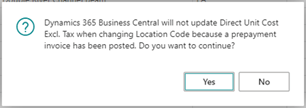
This is caused by the combination of prepayments on your purchase order and your container using the On The Water location. Business Central alerts users that have processed a prepayment that the Direct Unit Cost will not change when you change locations. Due to the requirement that On The Water Containers update your Purchase Order to be received into that location, this message is triggered. You will need to click Yes on that message while an update is worked on to bypass the message.
I am receiving an error saying that I am not entitled to use the app, what do I do? #
If you are receiving the error below, please verify with your system administrator that you have been licensed in the Microsoft 365 Administration Portal with a non-Test Users license.
It can take up to an hour for a license assigned in the Microsoft 365 Administration Portal to be recognized. If it has been over an hour, please have your Business Central Partner or system administrator reach out to support@apcdynamics.com.


