

Companies need to create installment payments for customers and vendors. Users may run into challenges creating installments using out-of-the-box Business Central Payment Terms. The installments need to be added manually to Purchase and Sales Orders. The Installment Payment Terms app will help you easily split payments into installments.
Use the payment term codes with additional installment payment terms on Purchase and Sales Orders/Invoices.
After posting a purchase or sales invoice, the system automatically splits the payment according to the installment payment setup.
Create Installment Payment Terms #
- Open the payment terms page and enter a new Payment Term.
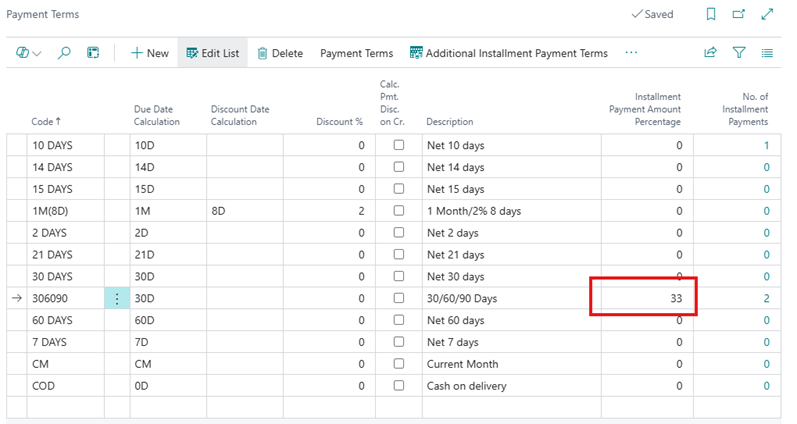
- There are two columns added to the Payment Terms table to manage Installment Payments.
- Installment Payment Amount Percentage: Enter the percentage of the order total for this part of the payment term split.
- No. of installment payments: This is a flowfield that shows the number of Installment Payment splits that have been associated to this Payment Term.
Add Additional Payments Terms #
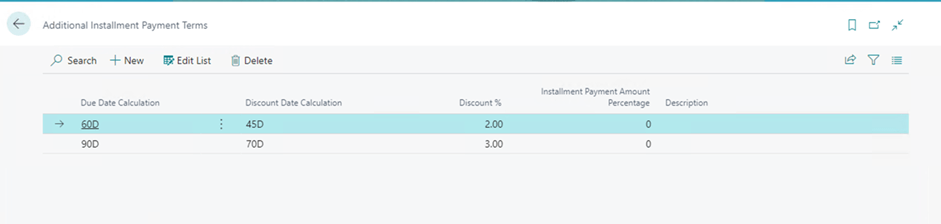
- Open the Additional Installment Payment Terms page by selecting a Payment Term and clicking on the Additional Installment Payment Terms action.
- Set up any additional Payment Terms
- Due Date Calculation: Date formula to calculate the additional payments.
- Discount Date Calculation: Date formula to calculate payment discounts.
- Discount %: Discount percentage use if paid within the discount period.
- Installment Payment Amount Percentage: Percentage of the total invoice applied to this specific installment payment.
NOTE: If there are rounding issues, the system adds the difference to the last payment entry.
Add Installment Payment Amount Percentage #
You can also enter different percentages per payment installment.
- Set up the payment percentage on the Payment Terms page for the first installment.
- Set up additional payment percentages on the Additional Installment Payment Terms page

Working with Date Formulas #
The Date Formula Tester is a utility tool that allows you to experiment with date formulas and see the results immediately, ensuring your installment payment schedules calculate correctly.
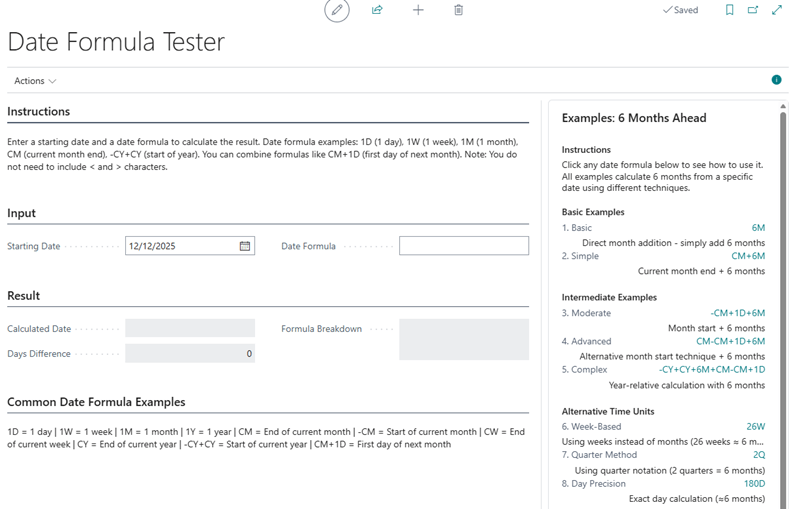
To use the Date Formula Tester,
- Open the Installment Payment Terms page
- Click Actions >> Date Formula Tester
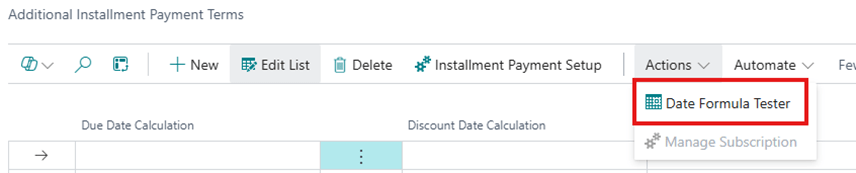
Use new Payment Terms #
Once set up, the system automatically splits the payments, according to the records in the Additional Installment Payment Terms page.
- Add the new Installment Payment Terms to the Customer or Vendor Card in the Payment Terms field to default on documents.
- Create a new Sales Order with the new Installment Payment Terms.
- Post the Sales Invoice
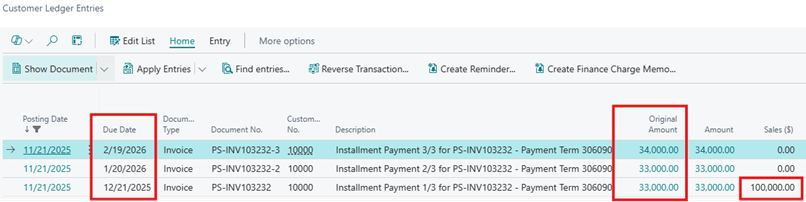
- Go to the Customer Ledger Entries page to view the entries created by the new Installment Payment Terms.
Limitations #
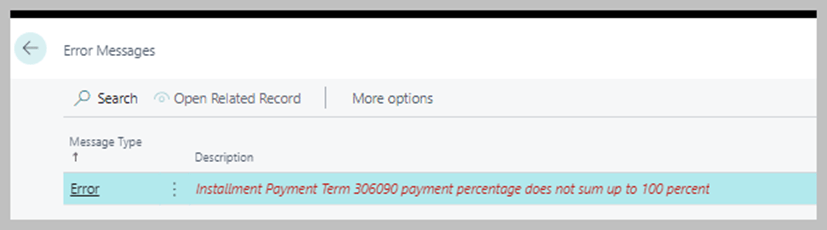
- Installment Payment Terms need to sum up to 100 percent. If they do not, the system displays this error on Post Invoice.
- Installment Payment Terms cannot be used on Credit Memos.
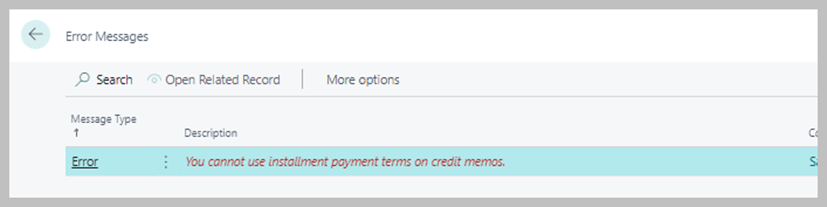
- To correct, Remove Installment Payment terms from the Credit Memo and Post the document.
- Go to the Customer/Vendor Ledger Entries page. Select the Posted Credit Memo. Select Process Apply Entries and apply the entries manually.
- Due to localization limitations, US users will need to manually enter the IRS 1099 Amounts on purchase documents or create an extension to populate the 1099 fields after posting installment payment invoices


