

Progress Payment Invoicing is a simple, flexible alternative to the built-in Prepayment feature in Microsoft Dynamics 365 Business Central. It’s designed to make it easier to manage partial payments across both sales and purchasing workflows—without locking down your orders or complicating your process.
Here’s what makes it different:
- Works with both sales and purchasing – You can use the same progress payment process whether you’re selling or buying.
- Invoices are based on the full order total – No need to calculate payments per line item. Just work with the overall order value.
- Keep editing your orders – You’re not locked out of making changes while waiting for progress payments to be posted or paid.
- Supports partial shipments – Create multiple progress invoices to match your delivery schedule or project milestones.
Installation & setup #
This app is licensed through Microsoft. To purchase and deploy it in your production environment, follow the instructions in the link below:
How to purchase and license the app through Microsoft AppSource
Assign user permission set #
- Choose the icon to enter “User” and click on the related link to open the Users list.
- On the Users list, select users that will require permissions to the Installment Payment Terms app.
- On each of the selected User Cards, go to the User Permission Sets tab, add the necessary permission sets based on the role of the user:
- APEPROGPMTPERMISSION
- This permission is needed only for users that will be creating, updating, or processing Sales or Purchase Documents with Progress Payments.
- A license is required for this permission.
- APEPROGPMTREAD
- Any user that may need to review but not update Sales or Purchase Documents.
- These users do not need to be assigned a license.
- APEPROGPMTPERMISSION

Progress payment setup #
- Choose the icon that opens the Tell Me feature, enter “Progress Payment Setup” and click on the related link
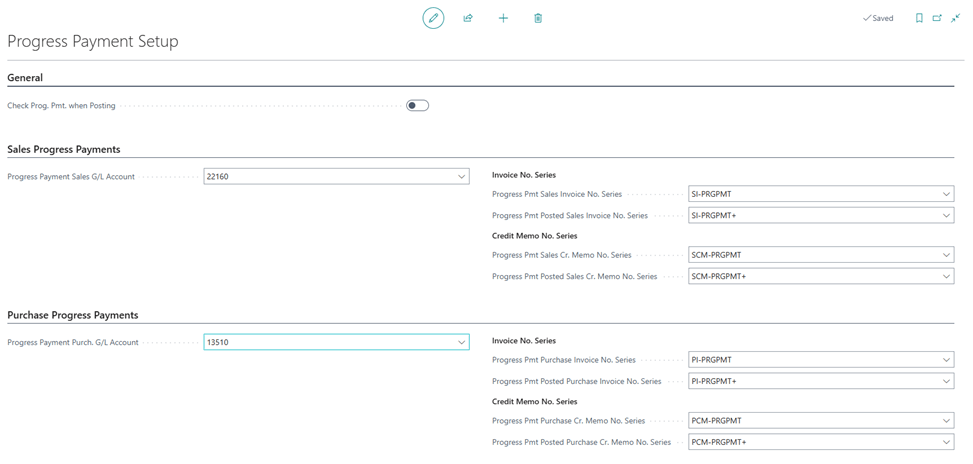
- Define the setup that you wish to use:
- General Group
- Check Prog. Pmt. When Posting
- If this is set to true, you cannot ship or invoice an order that has an unpaid Progress Payment
- Check Prog. Pmt. When Posting
- Sales Progress Payments Group
- Progress Payment Sales G/L Account
- Defines the G/L Account to use for Progress Payment Sales Invoices and Cr. Memos.
- Progress Pmt Sales Invoice No. Series
- Specifies the No. Series used for Progress Payment Sales Invoices. If this field is left empty, the system will use the default Sales Invoices No. Series set on the Sales & Receivables Setup page.
- Progress Pmt Posted Sales Invoice No. Series
- Specifies the No. Series to use for Posted Progress Payment Sales Invoices. If this field is left empty, the system will use the default Posted Sales Invoices No. Series set on the Sales & Receivables Setup page.
- Progress Pmt Sales Cr. Memo No. Series
- Specifies the No. Series to use for Progress Payment Sales Cr. Memos. If this field is left empty, the system will use the default Sales Cr. Memos No. Series set on the Sales & Receivables Setup page.
- Progress Pmt Posted Sales Cr. Memo No. Series
- Specifies the No. Series to use for Posted Progress Payment Sales Cr. Memos. If this field is left empty, the system will use the default Posted Sales Cr. Memos No. Series set on the Sales & Receivables Setup page.
- Progress Payment Sales G/L Account
- Purchase Progress Payments Group
- Progress Payment Purch. G/L Account
- Defines the G/L Account to use for Progress Payment Purchase Invoices and Cr. Memos.
- Progress Pmt Purchase Invoice No. Series
- Specifies the No. Series to use for Progress Payment Purchase Invoices. If this field is left empty, the system will use the default Purchase Invoices No. Series set on the Purchases & Payables Setup page.
- Progress Pmt Posted Purchase Invoice No. Series
- Specifies the No. Series to use for Posted Progress Payment Purchase Invoices. If this field is left empty, the system will use the default Posted Purchase Invoices No. Series set on the Purchases & Payables Setup page.
- Progress Pmt Purchase Cr. Memo No. Series
- Specifies the No. Series to use for Progress Payment Purchase Cr. Memos. If this field is left empty, the system will use the default Purchase Cr. Memos No. Series set on the Purchases & Payables Setup page.
- Progress Pmt Posted Purchase Cr. Memo No. Series
- Specifies the No. Series to use for Posted Progress Payment Purchase Cr. Memos. If this field is left empty, the system will use the default Posted Purchase Cr. Memos No. Series set on the Purchases & Payables Setup page.
- Progress Payment Purch. G/L Account
* Note about No. Series fields – You must set the Manual Nos. field to true in the No. Series page for the No. Series assigned to your posted documents (Posted Invoices and Posted Cr. Memos for both Sales and Purchasing).


