
Overview
If you’ve spent any time managing inbound freight containers in Business Central, you know the receiving process has a lot of moving parts. You’re tracking quantities, managing carrier information, and making sure everything lines up before the container can be posted and inventory can move.
Two things in that process have been causing unnecessary friction for a while now. The way you update quantities on a container, and the way carrier information gets entered. Version 1.8.18.0 addresses both.
Updating Qty. on Container Is Now Inline
Previously, changing the quantity to receive on a container line meant going through a separate popup dialog. You’d find the line, trigger the action, confirm through the dialog, and then come back to where you were. It worked, but it was more clicks than the task needed.
That popup is gone in 1.8.18.0.
Quantity changes now happen directly on the container subform. You update the Qty. on Container field, and the change applies immediately. No dialog. No extra confirmation step. No navigating away from the record you’re already working in.
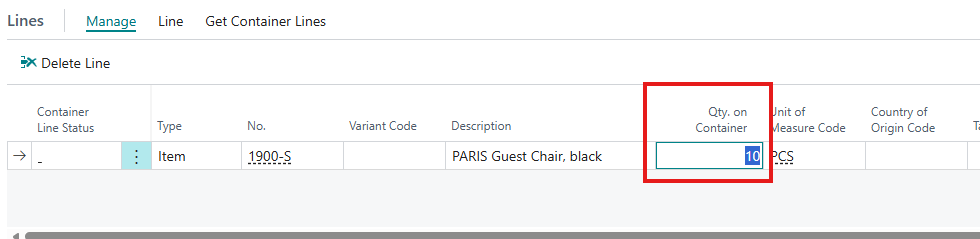
If you’re receiving a container with a lot of lines — adjusting quantities based on what actually showed up versus what was on the purchase order — that difference adds up fast. The process stays where you’re working instead of pulling you out of it.
Shipping Lines Now Have a Proper List
Up until now, carrier information on a container was a free-text field. That means if ten people entered the same carrier, you might end up with ten different spellings. That inconsistency is a problem beyond just aesthetics.
We covered this a bit in our post on real-time container tracking. The SCAC code on a container is what the Terminal 49 integration uses to initiate a tracking request. If that code isn’t accurate, the tracking request fails and falls back to a manual path. A free-text field makes that kind of inconsistency easy to introduce and hard to catch.
Version 1.8.18.0 replaces that with a dedicated Shipping Line lookup table. When you select a Shipping Line Code on a container, the Shipping Line name and SCAC Code populate automatically from the list. No typing. No guessing.
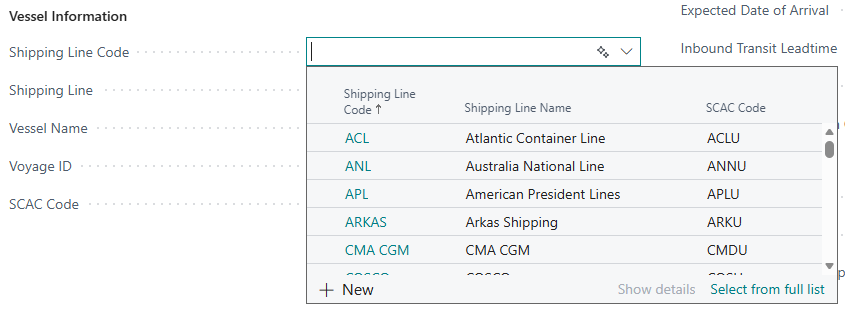
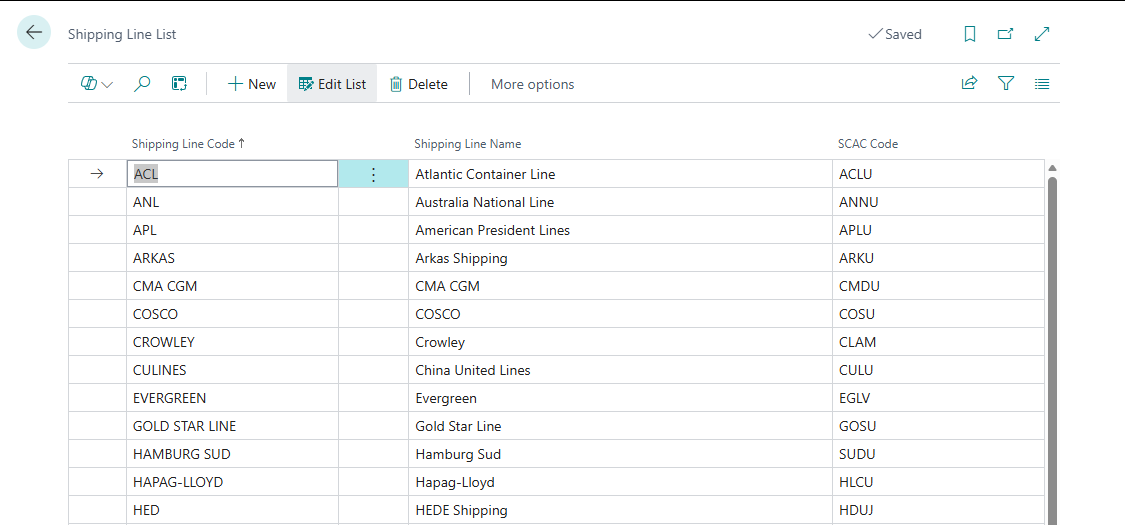
The list comes pre-populated with common carriers on upgrade, so you don’t have to do anything before it starts working. If you need to manage the list, it’s available directly from the Container Management Setup.
Why Both of These Matter
The common thread here is the same problem we’ve been chipping away at with every update to this app: too many steps between you and accurate data.
The old quantity dialog added navigation overhead to a task you repeat constantly. The free-text carrier field let data quality drift over time, which compounded every time that data fed into something downstream — like a Terminal 49 tracking request, or a report someone is trying to reconcile.
Both fixes follow the same logic. Get the data entry as close to the record as possible. Where consistency depends on a controlled list, give people the list.
The goal of this app has always been to reduce the number of manual steps standing between a container arriving at your dock and inventory being available in the system. These two changes are a continuation of that.
Getting the Update
Version 1.8.18.0 is available now. If you’re already running Freight Container Receiving Management, the shipping line list will be pre-populated automatically on upgrade — no manual setup required.
If you have questions or want to walk through how the new shipping line setup works in your environment, reach out to us. We’re happy to take a look with you.
