Skip to content
  • English English
    • English English
APC Dynamics | Dynamics 365 Business Central ConsultantAPC Dynamics | Dynamics 365 Business Central Consultant
  • Home
  • Our Company
    • Our Partners
    • Careers
  • ERP Solutions
    • Dynamics 365 Business Central
    • Dynamics 365 Business Central Add-ons
    • Dynamics NAV
  • Our Services
  • Portfolio
    • Food Manufacturers
    • Nurseries and Farms
    • High-Tech Equipment Manufacturing
    • Sporting Goods / Active Sports
    • Automotive Aftermarket
    • Distribution/Wholesale
  • Articles
  • Support
    • Knowledge Base
    • Contact Us

Freight Container Management

  • Overview and Setup
  • User Guide
  • Reports
  • Appendix
  • FAQ

Progress Payment Invoicing

  • Overview and Setup
  • User Guide
  • FAQ

Installment Payment Terms

  • Overview and Setup
  • User Guide

Purchase Request Module

  • Overview and Setup
  • User Guide

California Sales Tax

  • Overview and Setup
  • User Guide

Sales Commission Based on Cash Receipt

  • Overview and Setup
  • User Guide
  • Appendix

Item Restriction

  • Overview and Setup
  • User Guide
  • FAQ

Serial Number by Bin on Bin Contents

  • Overview and Setup
  • User Guide

Inventory Aging Report

  • Setup and User Guide

Daily Invoicing Report with G/L Breakdown

  • Setup and User Guide

How-tos

  • Purchase and License an app through Microsoft AppSource
  • Setup New Users in Business Central
View Categories
  • Knowledge Base
  • How-tos
  • Setup New Users in Business Central

Setup New Users in Business Central

< 1 min read

Assigning New License #

  1. Go to your Microsoft 365 Admin.
    • Note: You must be an admin user 
  1. Go to Users > Active Users 
  1. Click on a specific user that you want to assign the BC license > Licenses and Apps  
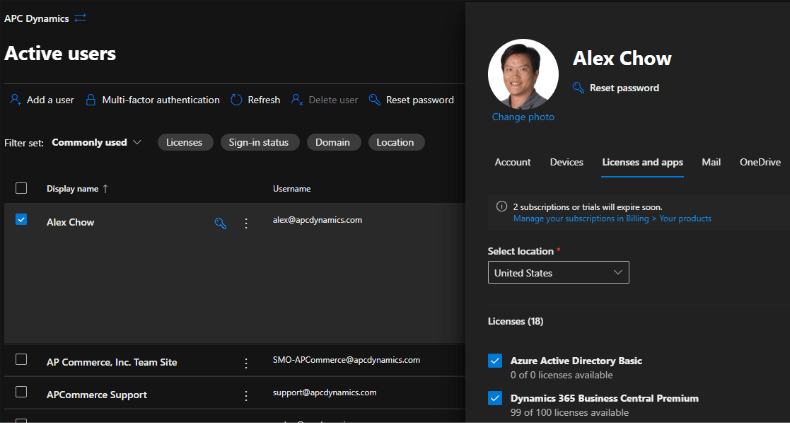
  1. Click on Dynamics 365 Business Central Essential (or Premium) 
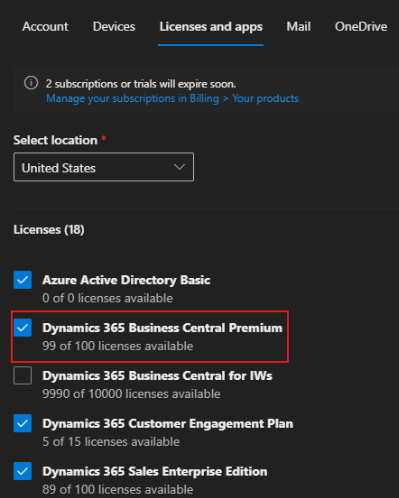
5. Click on Save Changes 

Go to Business Central  #

  1. Log into Business Central as a SUPER user 
  1. Find the Users screen 
  1. Click on Home > Update Users from Microsoft 365 (this process will grab all of the users that have BC license) 
  1. Go through the confirmation prompts 
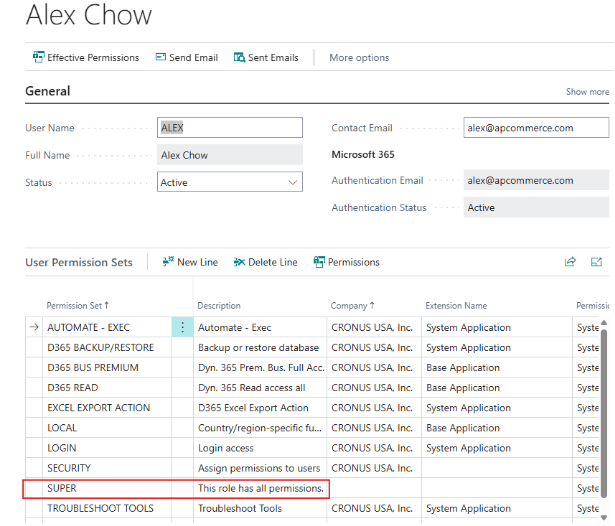
  1. Click on the user you want to give BC permissions to 
  1. Scroll down to User Permissions and assign Permission Sets 

Assign SUPER permission if you’re unsure what permission to assign. You can always change the permissions later 
Share This Document:

  • Facebook
  • X
  • LinkedIn
Purchase and License an app through Microsoft AppSourcePurchase and License an app through Microsoft AppSource
Table of Contents
  • Assigning New License
  • Go to Business Central 

Copyright © 2025 APC Dynamics Inc.

Privacy Notice | Privacy Requests

This site is protected by reCAPTCHA and the Google Privacy Policy and Terms of Service apply.

Copyright 2026 © AP Commerce, Inc.
  • Home
  • Our Company
    • Our Partners
    • Careers
  • ERP Solutions
    • Dynamics 365 Business Central
    • Dynamics 365 Business Central Add-ons
    • Dynamics NAV
  • Our Services
  • Portfolio
    • Food Manufacturers
    • Nurseries and Farms
    • High-Tech Equipment Manufacturing
    • Sporting Goods / Active Sports
    • Automotive Aftermarket
    • Distribution/Wholesale
  • Articles
  • Support
    • Knowledge Base
    • Contact Us
  • English English
    • English English