

The QuickAttach app extends Microsoft Dynamics 365 Business Central by providing a modern, high-performance file management interface. It eliminates the multi-step upload process of standard Business Central, allowing you to manage documents with simple drag-and-drop actions and seamless SharePoint integration.
Here’s what makes it different:
- True Drag & Drop Interface – Instantly attach files by dragging them from your desktop directly onto any record FactBox.
- Enterprise SharePoint Integration – Automatically offload files to SharePoint to keep your Business Central database lean and your documents organized in a structured folder hierarchy.
- Automated Document Flow – Ensure continuity by having attachments automatically carry over from unposted orders to posted invoices during the posting process.
Installation & Setup #
This app is licensed through Microsoft. To purchase and deploy it in your production environment, follow the instructions in the link below:
How to purchase and license the app through Microsoft AppSource
SharePoint Connector #
QuickAttach requires the SharePoint Connector to be set up in order to connect Business Central to SharePoint, follow the instructions in the link below:
SharePoint Connector setup and user guide
QuickAttach Setup Page #
Note: Please ensure Sharepoint Connector App is setup.
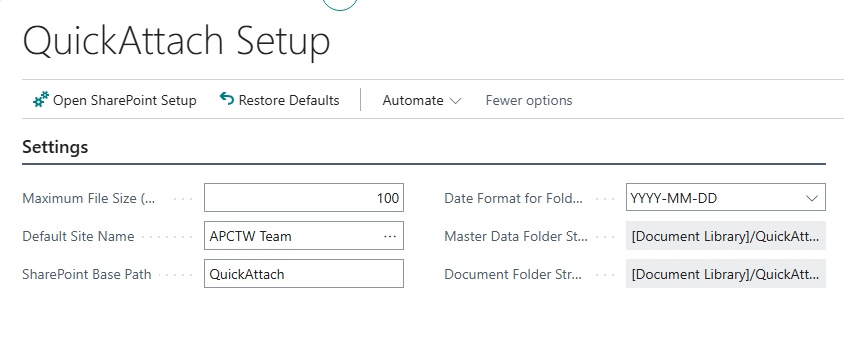
- Search for QuickAttach Setup and select the related link.
- On the Settings tab, you can change the settings.
Assign User Permission Set #
Note: Users will need to be assigned Sharepoint Permission Sets.
- Search “Users” and select the related link.
- Select the User Card for the relevant staff members.
- Under User Permission Sets, add the following based on the user’s role:
- APEQUICKATTADMIN: Full access to setup and management.
- APEQUICKATTUSER: Allows users to drag, drop, and view attachments on records.


