Skip to content
  • English
    • English
APC Dynamics | Dynamics 365 Business Central ConsultantAPC Dynamics | Dynamics 365 Business Central Consultant
  • Home
  • Our Company
    • Our Partners
    • Careers
  • ERP Solutions
    • Dynamics 365 Business Central
    • Dynamics 365 Business Central Add-ons
    • Dynamics NAV
  • Our Services
  • Portfolio
    • Food Manufacturers
    • Nurseries and Farms
    • High-Tech Equipment Manufacturing
    • Sporting Goods / Active Sports
    • Automotive Aftermarket
    • Distribution/Wholesale
  • Articles
  • Support
    • Knowledge Base
    • Contact Us

Freight Container Management

  • Overview and Setup
  • User Guide
  • Reports
  • Appendix
  • FAQ

Progress Payment Invoicing

  • Overview and Setup
  • User Guide
  • FAQ

Installment Payment Terms

  • Overview and Setup
  • User Guide

Purchase Request Module

  • Overview and Setup
  • User Guide

California Sales Tax

  • Overview and Setup
  • User Guide

Sales Commission Based on Cash Receipt

  • Overview and Setup
  • User Guide
  • Appendix

Item Restriction

  • Overview and Setup
  • User Guide
  • FAQ

Serial Number by Bin on Bin Contents

  • Overview and Setup
  • User Guide

Inventory Aging Report

  • Setup and User Guide

Daily Invoicing Report with G/L Breakdown

  • Setup and User Guide

QuickAttach

  • Overview and Setup
  • User Guide
  • Supported Objects

Sharepoint Connector

  • Setup and User Guide

Disassembly Order Management

  • Overview and Setup
  • User Guide
  • FAQ

How-tos

  • Purchase and License an app through Microsoft AppSource
  • Setup New Users in Business Central
View Categories
  • Knowledge Base
  • QuickAttach
  • User Guide

User Guide

1 min read

QuickAttach makes managing record-linked documents effortless. Whether you are adding a vendor contract, an item picture, or a customer PO, you can do it without leaving the record page.

Using the Drag & Drop Zone #

  1. Open any supported record (e.g., Customer Card, Item Card, or Sales Order).
  2. Locate the QuickAttach FactBox on the right-hand side of the page.
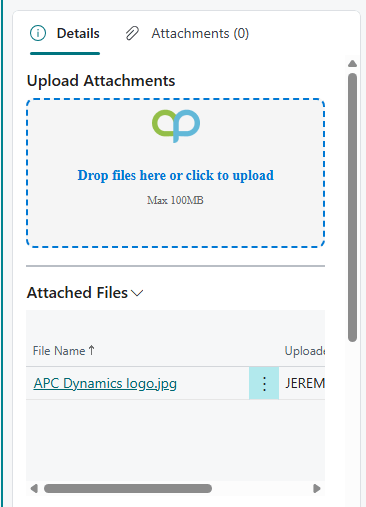
  1. Select one or more files from your computer and drag them directly into the “Drop Zone.”
  2. The system will instantly validate the file and upload it.
    • Note: If drag-and-drop is not supported by your browser, you can click the box to open a traditional file picker.

SharePoint Folder Organization #

QuickAttach automatically organizes your files in SharePoint. You don’t need to create folders manually; the system creates them using the following logic:

  • Master Data: QuickAttach/Customers/CUST001
  • Documents: QuickAttach/Sales/Order/SO1001/2025-11-24

Date format can be changed in the QuickAttach Setup.

Attachment Flow During Posting #

  1. Attach a document (like a customer’s signed quote) to a Sales Order.
  2. Post the Sales Order.
  3. Open the resulting Posted Sales Invoice. The attachment is automatically linked and visible there, ensuring a complete audit trail without re-uploading.

Limitations #

  • Credit Memos: Like standard BC, attachments added to Credit Memos do not “apply” to original invoices automatically; they remain linked to the Credit Memo record.

Share This Document:

  • Facebook
  • X
  • LinkedIn
Overview and SetupSupported Objects
Table of Contents
  • Using the Drag & Drop Zone
  • SharePoint Folder Organization
  • Attachment Flow During Posting
  • Limitations

Copyright © 2025 APC Dynamics Inc.

Privacy Notice | Privacy Requests

This site is protected by reCAPTCHA and the Google Privacy Policy and Terms of Service apply.

Copyright 2026 © AP Commerce, Inc.
  • Home
  • Our Company
    • Our Partners
    • Careers
  • ERP Solutions
    • Dynamics 365 Business Central
    • Dynamics 365 Business Central Add-ons
    • Dynamics NAV
  • Our Services
  • Portfolio
    • Food Manufacturers
    • Nurseries and Farms
    • High-Tech Equipment Manufacturing
    • Sporting Goods / Active Sports
    • Automotive Aftermarket
    • Distribution/Wholesale
  • Articles
  • Support
    • Knowledge Base
    • Contact Us
  • English English
    • English English