

Overview #
The Sharepoint Connector App allows users to easily connect Business Central to their Sharepoint, easily access their documents, as well as create new folders, import documents and more!
This library app is used alongside Quick Attach. Learn more about the app here.
Installation & Setup #
This app is licensed through Microsoft. To purchase and deploy it in your production environment, follow the instructions in the link below:
How to purchase and license the app through Microsoft AppSource
Create App Registration #
- Log into your Microsoft Entra Admin Center(https://entra.microsoft.com/#home) with an Administrator account.
- On the left panel, under the Entra ID section, select App Registrations and click on New Registration
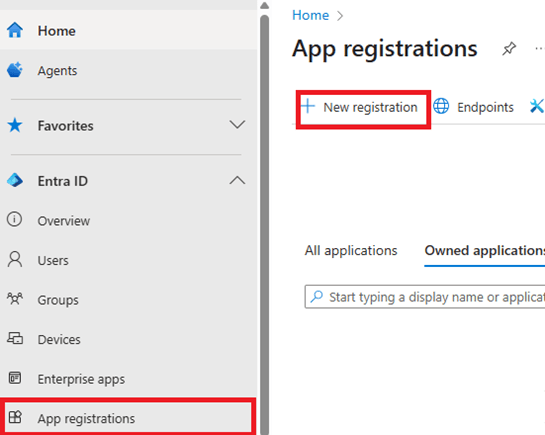
- In the Register an application page, enter your application’s registration information
- In the Name section, enter a name of your choice
- Select the ‘Accounts in any organizational directory’ option
- Set the Redirect URI to https://businesscentral.dynamics.com/OAuthLanding.htm
- Click on Register to create the application
- Click on Certificates & Secrets, select new client secret and set the desired expiration date.
***Keep the Value of the Client Secret saved. This value will NOT be shown again, and a new secret will need to be created.***
- Go to API permissions and add the following permissions:
- Business Central – User_Impersonation (Delegated Permission)
- Business Central – Financials.ReadWrite.All (Delegated Permission)
- Microsoft Graph – Files.ReadAll (Delegated Permission)
- Microsoft Graph – Files.ReadWrite (Delegated Permission)
- Microsoft Graph – Files.ReadWrite.All(Delegated Permission)
- Microsoft Graph – Sites.Read.All (Application Permission)
- Microsoft Graph – Sites.ReadWrite.All (Application Permission)
- Microsoft Graph – User.Read (Delegated Permission)
- SharePoint – Sites.ReadAll (Application)
- SharePoint – Sites.ReadWrite.All (Application)
- SharePoint – Sites.Selected (Application)
- SharePoint – Sites.Search.All (Delegated)
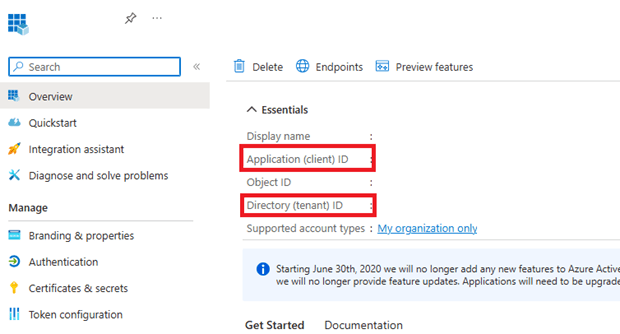
The following information will be needed for the next step
- Client ID
- Tenant ID
- Secret Value from step 4)
Connect the App Registration to Business Central #
- In Business Central, go to Microsoft Entra Applications and select +New
- Enter the Client ID and give it a description and set the State to Enabled.
- Add Permission Set D365 BUS FULL ACCESS
- Select Grant Consent.
Verify HttpClient Request enabled #
- Open the Extension Management page
- Open the SharePoint Connector app page
- Enable the Allow HttpClient Request checkbox
Connect the SharePoint to Business Central #
- Search for SharePoint Connector Setup and click on the first link. Enter the following information, and ensure *TENANT*ID* is replaced with your Tenant ID.
- Client ID
- Client Secret
- Redirect URL: https://businesscentral.dynamics.com/OAuthLanding.htm
- Scope: https://graph.microsoft.com/.default
- Authorization URL: https://login.microsoftonline.com/*TENANT*ID*/oauth2/v2.0/authorize
- Access Token URL: https://login.microsoftonline.com/*TENANT*ID*/oauth2/v2.0/token
- Click on Request Access Token. If successful, the message ‘Connection successful’ should appear.
- If you choose to, you may enter the date where the Secret Value will expire, and if the notifications are allowed, users will receive a notification on their Role Center 30 days before the expiration date.
- Default Site can be selected for the Sharepoint Folder to open a specific Site.
Assign User Permission Set #
- Search and enter “User” and click on the related link to open the Users list.
- On the Users list, select users that will require permissions to the Installment Payment Terms app.
- On each of the selected User Cards, go to the User Permission Sets tab, add the necessary permission sets based on the role of the user:
- APESHAREPOINTPERM – Assign this to users that will be using this app in the production environment.
User Guide #
- Search for Sharepoint Folder.
- Select the Site you would like to enter. If a default is set in Sharepoint Connector Setup, this Site will be the only one available.
- Users may delete, upload and download files from any folder, as well as delete and create new folders.


