

Copying the Disassembly BOM #
If the Disassembly BOM Source is setup as Disassembly BOM, you will need to create the disassembly BOM associated with the item. You can copy the Disassembly BOM from the Assembly BOM with a process.
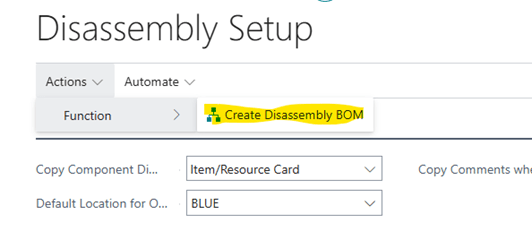
From the Disassembly Setup page, do the following:
- Click on Action >Function >Create Disassembly BOM
- Click Ok to run the process to create a disassembly BOM for all items with a regular BOM setup.
Item Setup #
On the item card, in the Replenishment Fasttab, you can define whether the system will automatically create and post the disassembly order on purchase receipt or return receipt.
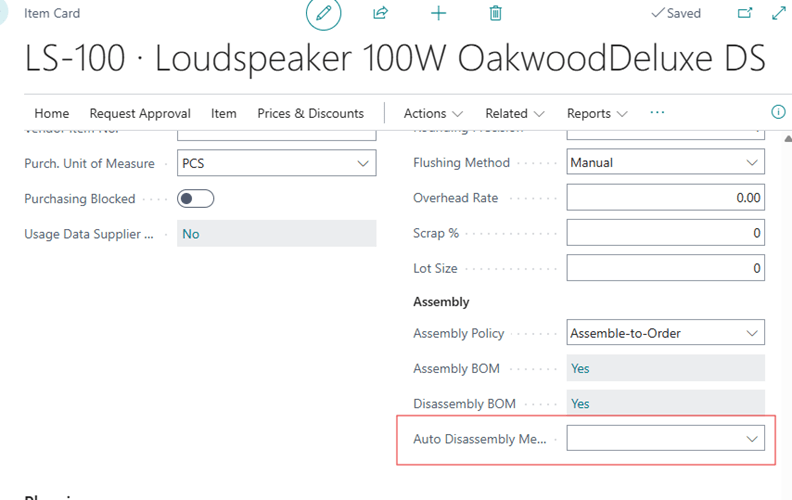
The options are:
- Purchase Receipt – When you post a purchase receipt on this item, it’ll automatically create and post the disassembly order
- Return Receipt – When you post a sales return receipt on this item, it’ll automatically create and post the disassembly order
- Both – Both purchase receipt and return receipts will generate and post the disassembly order
Creating Disassembly Orders #
After the Disassembly BOM is setup for the item, you can now create and process a disassembly order.
- Go to the Disassembly Order using search
- Click on New to create a new disassembly order
- If the number series is setup for the disassembly order, push enter on the No. field to generate a new disassembly order
- Enter a quantity to disassemble
The disassembly components on the lines will automatically be populated based on the Disassembly BOM setup for this item.
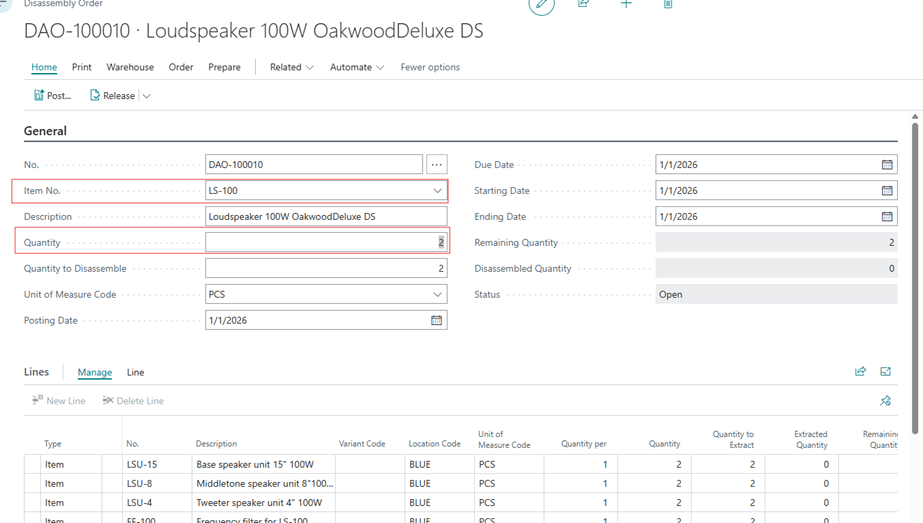
- Edit the disassembly lines if necessary
- When the disassembly is ready to be posted, click on Home à Post
The posted disassembly will be in the Posted Disassembly page.


